Your stickers are inside Messages.
Downloaded sticker packs do not appear in the Emoji keyboard, and many sticker apps do not have a regular standalone screen. Follow these four steps to find and use your stickers.
Show me howFour simple steps
How to send a sticker
- 01
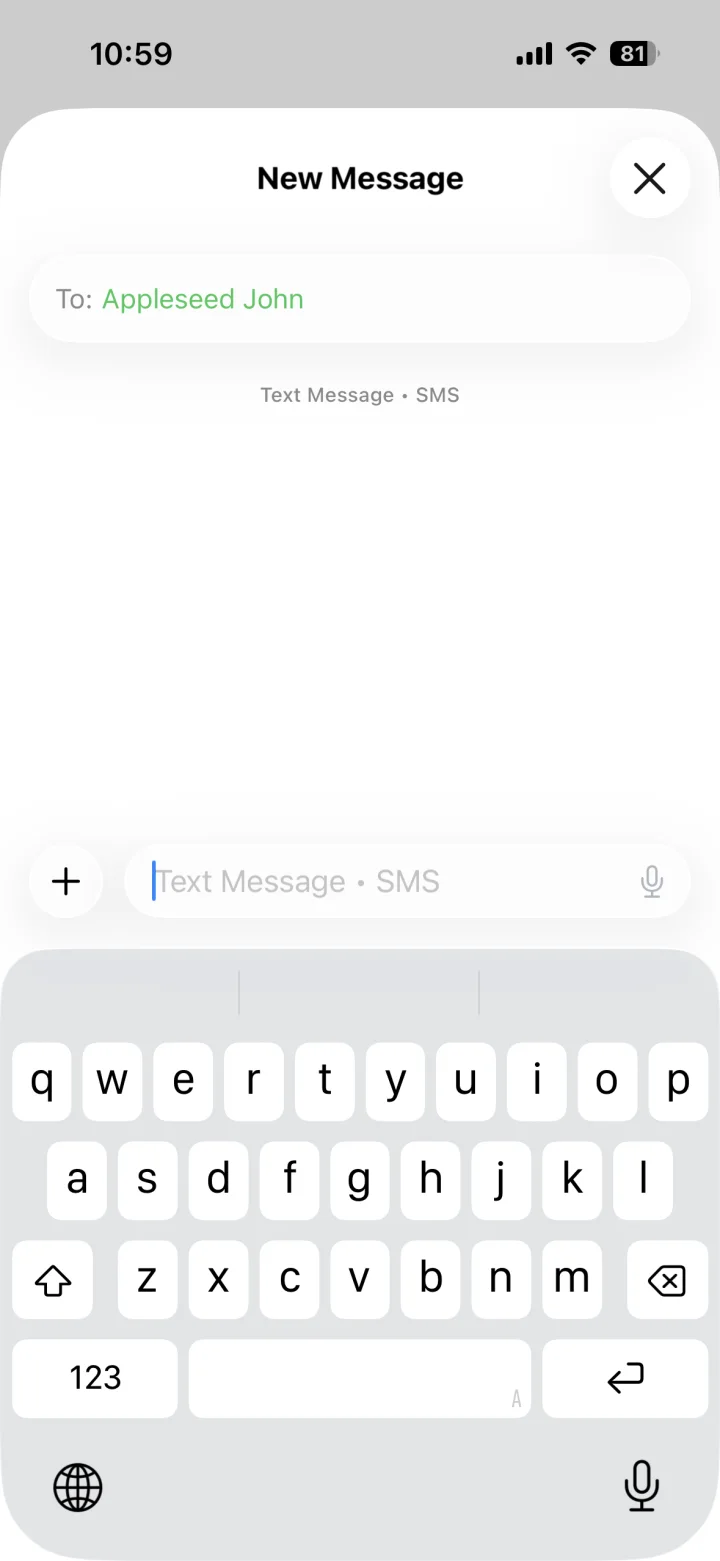
Open a conversation in Messages
Open the Messages app on your iPhone, then start a new message or select an existing conversation.
- 02
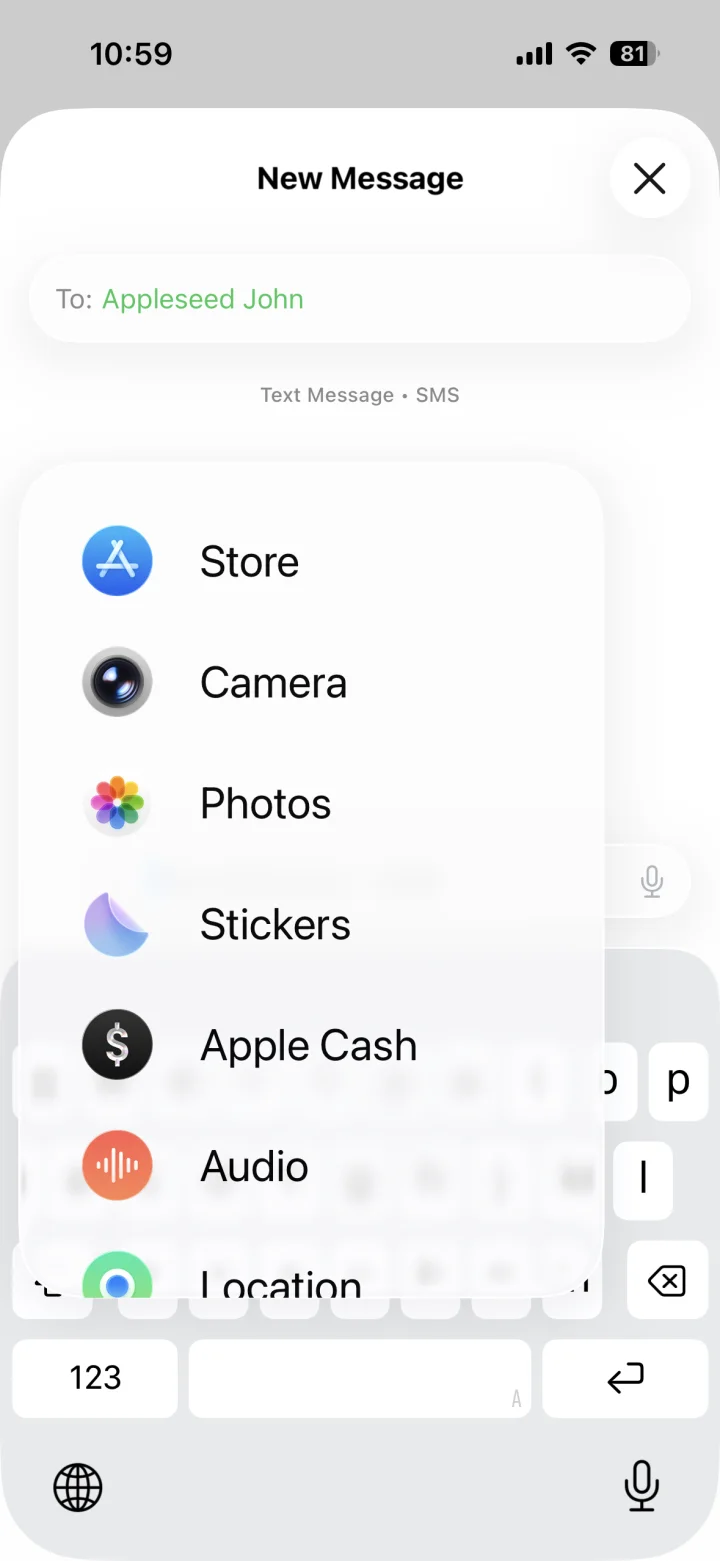
Tap +, then tap Stickers
Tap the plus button beside the message field. In the menu that appears, choose Stickers.
- 03
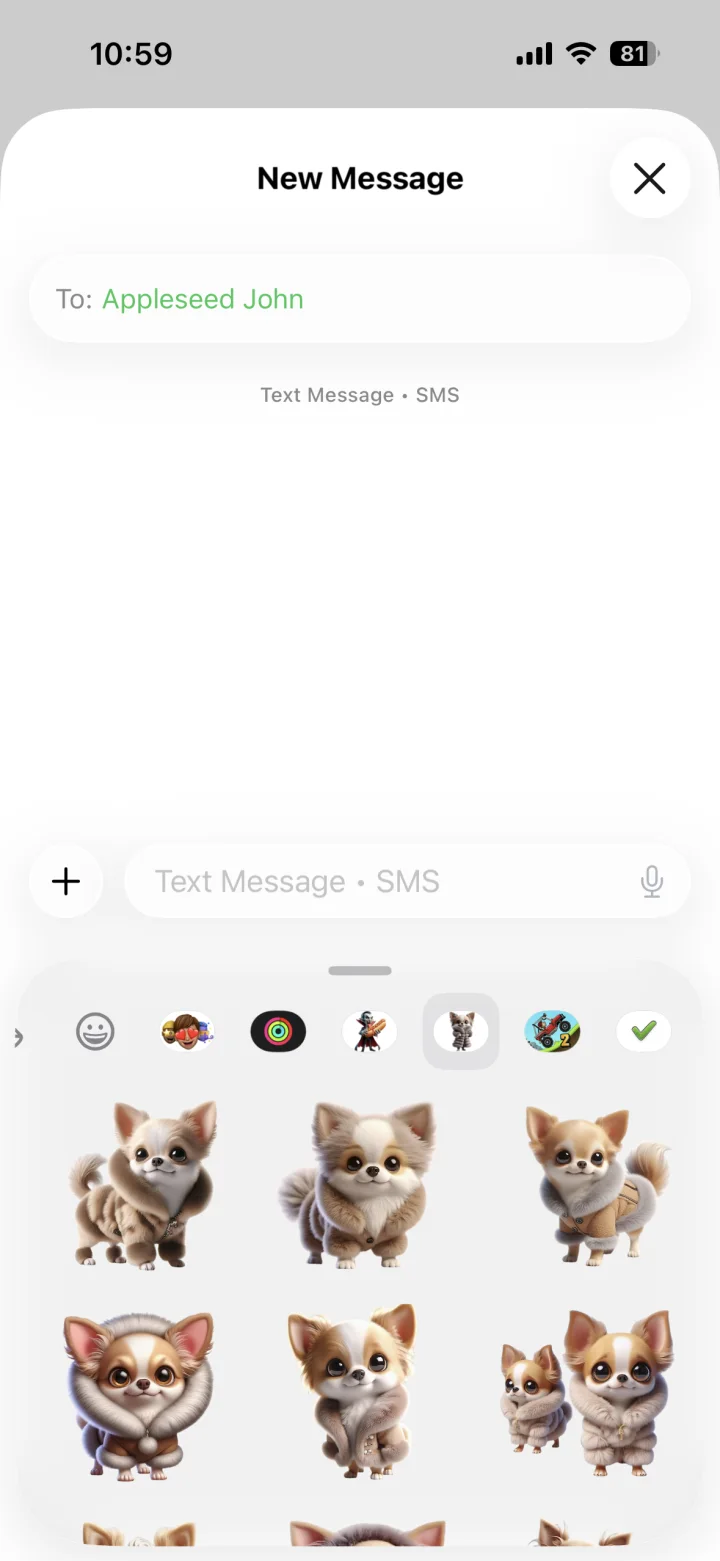
Choose your sticker pack
Use the row of icons at the top of the sticker drawer to find the sticker pack you downloaded, then tap its icon.
- 04
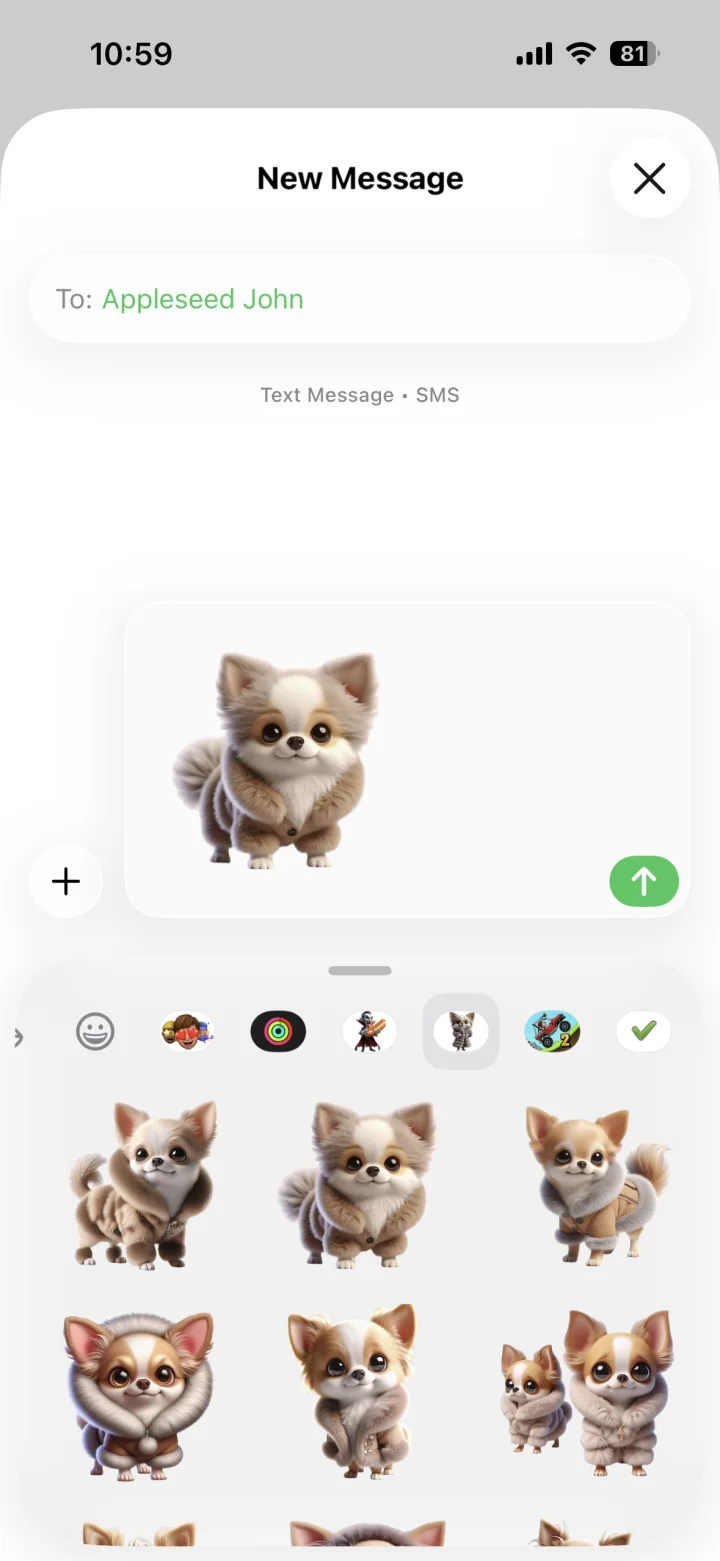
Tap a sticker and send it
Tap the sticker you want. It will appear in the message field—tap the send arrow to share it.
Still can’t find it?
A few things to check
-
Look in Stickers, not Emoji. Sticker packs live in the Messages sticker drawer.
-
Swipe through the icon row. Your downloaded pack may be farther to the left or right.
-
Reopen Messages. After a new download, close and reopen Messages so the pack can appear.
Need more help?
Tell us your iPhone model, iOS version, and the name of the sticker app.